Posts

Showing posts with the label Functional

Monitoring Job Queues: Setting Up Failure Notifications in Business Central

Image
Introduction A job queue lets users set up and manage background tasks that run automatically. These tasks can be scheduled to run on a recurring schedule. For a long time, users had a common problem in Business Central—when a job queue failed, there was no alert or warning. You’d only notice something was wrong when a regular task didn’t run for a few days. Some people tried to fix this by setting up another job queue to watch and restart failed ones. But that didn’t always work, especially if an update happened at the same time. Now, Microsoft has finally added a built-in way to get alerts when a job queue fails.  You can get notified either inside Business Central or by using Business Events. In this blog, we’ll look at how to set up notifications directly within Business Central.  References MS Learn - Get in-product notifications about issues with job queue background processing MS Learn - Job Queue Configuration Search for "Assisted Setup" in Business Central's glob...

Staying Up-to-Date: Managing Updates in F&O

Image
Introduction: System updates are crucial for keeping systems secure, functional, and up-to-date with the latest technology advancements and user needs. They are typically provided by software developers, manufacturers, or service providers, and users are often encouraged or required to apply them regularly. System updates are essential for several reasons: Security Enhancements : Updates often include patches for vulnerabilities that have been discovered. Without these updates, systems can be left exposed to malware, hacking, or other security threats. Improved Performance : Updates can optimize how software runs, leading to faster performance and better resource management. This can make systems more efficient and responsive. Bug Fixes : They resolve known issues, preventing system crashes or malfunctions. Bugs can affect functionality, and updates ensure a smoother user experience. New Features : Updates frequently bring new tools and functionalities, helping users access the latest ...

How to Use Copilot Chat to Supercharge Productivity in Business Central

Image
Introduction Interacting with systems in natural language benefits organizations by making technology more accessible and user-friendly for all employees, regardless of technical skill. It allows users to complete tasks quickly by eliminating complex commands, improving productivity and reducing the potential for errors. This streamlined access to information leads to faster decision-making, ultimately helping organizations operate more efficiently. Are your people finding it difficult to navigate Business Central and access important information quickly? If so, consider incorporating Copilot Chat to ease their suffering! Research indicates that call center operators using AI assistance became 14% more productive , with gains exceeding 30% for less experienced workers . This improvement is attributed to AI capturing and conveying organizational knowledge that helps in problem-solving. Specific tasks can see remarkable speed increases; for instance, software engineers using tools like C...

Item Availability Overview - A quick glance at the Item's Inventory levels

Image
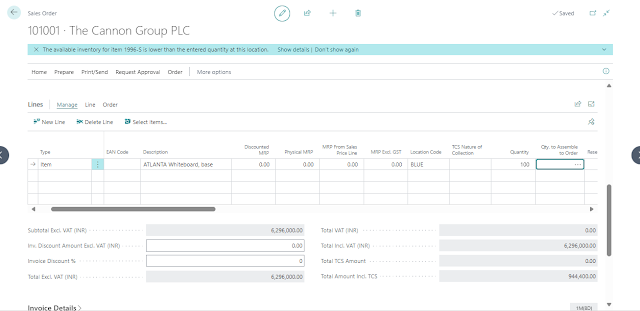
While going through some sales documents, I noticed that the page that appears when I click on "Show Details" in the notification for low inventory has been updated! When we click on "Show Details" now, we're taken to the page named "Item Availability Check". Furthermore, it includes options to directly create a Purchase Order or a Purchase Invoice from this page.  If a Vendor is specified in the "Vendor No." field of the Item Card, the Purchase Order/Invoice is automatically generated with that Vendor. In the scenario where multiple vendors are selected in the Item Vendor Catalog instead of the Vendor No., all the vendors are displayed, and the one selected by the user is utilized to create the Purchase Order/Invoice. In both cases, the Purchase Line will reflect the shortfall as the Quantity. If the Item has any substitutes available then the "Substitute Exists" indicates the same and clicking on it opens the Item Substitutions pa...

Master Data Sync Across Companies

Image
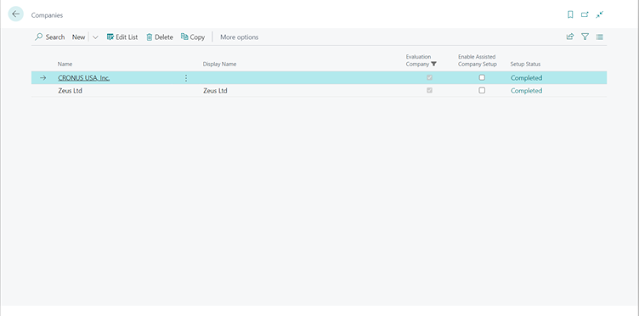
Introduction In many business scenarios we have two or more companies which work with the same Customers or Vendors or has same data that is to be shared with multiple legal entities. For such cases, manually making sure everything is in sync becomes difficult as the number of entities increases. For this, Business Central now comes with the functionality to sync master data across multiple companies. This can also be used by consultants for one time syncs if they simply need the setups from one company in another instead of going through the Configuration Package route. Pre-requisites Business Central Cloud/OnPrem References Set up and sync master data across companies Set Up Companies to Synchronize Master Data - Business Central Configuration First, I’ve created two companies in a Sandbox Box which are going to have a uni-directional sync between them. It is possible to have a bi-directional sync however it may cause issues and may cause over-write of data if it isn’t configured pro...

Recurring Sales in Business Central

Image
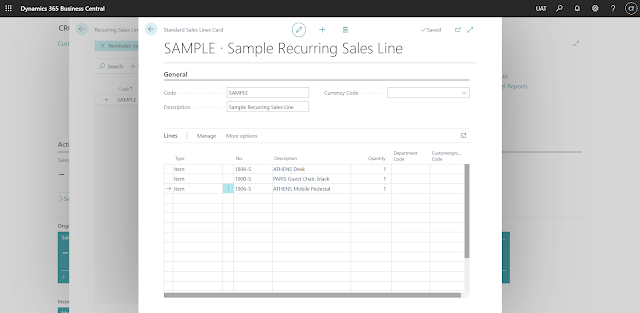
Introduction In this blog, we’ll be looking at how to reduce manual work in creating Sales Line in Business Central. For this, we’ll be using the Out of the Box feature of “Recurring Sales Lines.” Pre-requisites Business Central OnPrem or Cloud References Standard Recurring Sales - Microsoft Docs Configuration Search for Recurring Sales Lines in Business Central global search and then click on New. Enter a Code for Identification, a short description and the Currency Code, if applicable. In the Lines, enter the Sales Line which are to be re-created. You can also define a Quantity if you want, it can be easily over-written if necessary. Go to the Customer Card for whom the Recurring Sales Line we created is going to be applicable. Then Go to Related > Sales > Recurring Sales Lines. Set the Code of the Recurring Sales Line, we just created and set the Valid From and Valid to Dates. The Insert Rec. Lines have the following options which have the following impact:  Manual - Syst...

Block Items on POS

Image
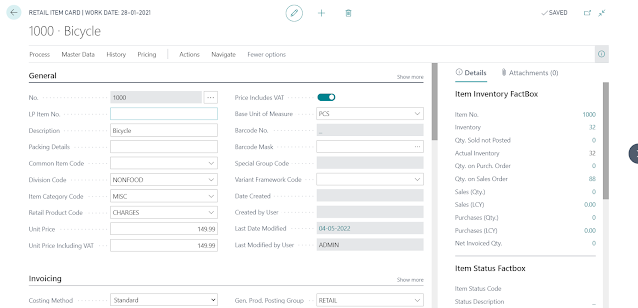
Introduction LS Central has its own unique way of preventing Items from being sold which is different from the standard “Blocked” option field we get on the Item Card. It also comes with detailed and refined permissions which can fit most business needs. All of this is done using another related table known as “Item Status” Pre-requisites Business Central OnCloud/OnPrem LS Central v16 References LS Retail Documentation How to block Items from POS Configuration Open the Retail Item Card for the Item you want to block. Open the “Item Status” for that Item. Click on the “Status Code” and Click on “Select from full list” Create a new record with code “BLOCKED” and enable all the fields. Here, you can see all the detailed controls available. Conclusion Thus, we saw how we can Block Items on POS in LS Central and other finer controls available at our disposal in LS Central. Happy Coding!