Posts

Changed Date Now Unable to Login to BC

Image
Introduction While doing some customization testing, which revolved around using different dates, I realized that once the date is switched back to the correct date, I was unable to connect to Business Central.  I restarted the server instance, IIS, SQL Server services to no avail. Pre-requisites Business Central OnPrem with SSL Setup References Server Fault Microsoft Support Verification Logging into Business Central gave no errors, there were no errors in the Event Viewer that explicitly mention that it is a Date related issue. The way I stumbled across it being a date related issue is that in the Response that the Business Central server sent to the Login Request, was carrying the wrong date in it. When I switched the System Date back to the date mentioned in the Response headers, everything seemed to be working again. Solution This issue is caused because when the system date is changed, the same is changed in IIS but when you change it back IIS does not refresh it and we have ...

Working with Odata Bound Actions

Image
Introduction OData Bound Actions allows us to perform logic in Business Central by hitting specific end points. We can also pass in parameters and get results in response.  It’s very similar to using Azure Functions but is natively built into Business Central at no extra cost! In this example, we’ll be returns the Base64 version of an Image of a Customer, we will also see how to get the Image for any other customer as well. Pre-requisites Business Central OnPrem/OnCloud References WebServiceActionContext Interacting with Odatav4 bound actions Configuration OData Bound Actions are written on Pages or API – Pages that you are declaring as Web Services.  In this example below, I’ve created a simple Customer Page with a few fields and kept the OData key field as the “No.” field. I’ve also defined this as a Web Service in Business Central. To create a OData Bound Action, we create a Global Procedure with the Service Enabled decorator. In this procedure, we have to create a WebServ...

Create Sales Order Quote From POS in LS Central

Image
Introduction LS Central allows us to create a Sales Order or Sales Quote directly from POS. I will be demonstrating the same below in this blog. Pre-requisites LS Central v16+ Business Central OnPrem/OnCloud References LS Central Documentation Configuration Search for “Sales Type” in Business Central Create a new record titled “SALES ORDER” in it. Make sure to set the Suspend Type to Sales Order/Sales Quote as required. I am setting it to Sales Order for this example. Log In to your POS with a POS Super User account and Right click on a button and go to button properties, I’m using the default “SUSPEND” button for example here. Set the command to “SUSPEND” and the parameter to the “Sales Order” record you created a few moments ago. Once this is done, create a new Transaction with a Customer and then click on the button. In the confirmation box, click on Yes. If you check in Business Central now, you can see that a new Sales Order has been created. You can also see the same from POS its...

Report Does Not Have a Layout Type None

Image
Introduction Have you ever faced the error: “Report ___ does not have a layout of type None.” Here’s how you can resolve it. Pre-requisites Business Central OnCloud/OnPrem References Community Question Configuration With the earlier versions of Business Central, you were allowed to run a report without specifying a layout, even if it was not a processing only report. However with the recent version of Business Central it is mandatory to specify both the DefaultLayout and the path to the layout via the RDLCLayout or WordLayout or ExcelLayout properties. Once these properties are the defined the error is resolved. Furthermore you can also resolve this error by using the report rendering section which has been made available since runtime 9.0. However be sure to define the DefaultRenderingLayout property for the report to specify which of the layouts defined should be considered as default. Conclusion Thus we saw how we can resolve the error: “Report ___ does not have a layout of type Non...

Customizing POS Receipt in LS Central

Image
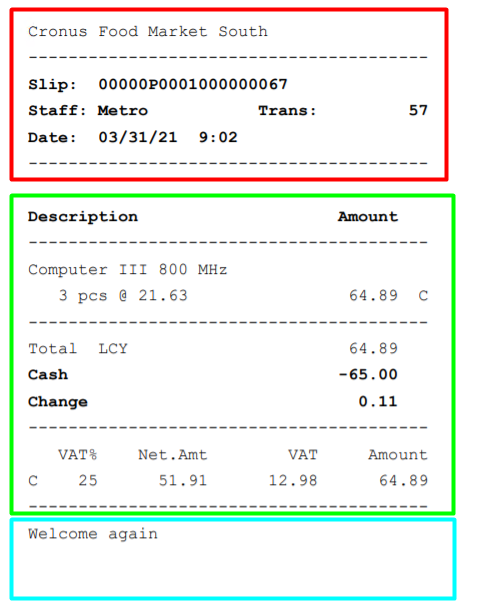
Introduction POS Receipts are generated after every transaction that occurs on POS. The default receipt provided by LS Central is generally sufficient but as is in all things there are always exceptions. There are two methods that we can modify the POS Receipts and we are going to see them both. Pre-requisites Microsoft Dynamics 365 Business Central LS Central Configuration This is the default receipt provided by LS.  I have marked division of sections using color.  Red - Header   Green - Body  Blue - Footer Without going with customization, we can still make some degree of changes to the standard layouts. Using Receipt Printing from POS Terminal / Store Card We can add text directly into the Header or the Footer of the POS Receipts and also define some basic properties like bold, italic or wide for the text.  It can be defined at POS Level or Store Level i.e. for individual POS Terminals or for all the POS Terminals in a Store. Go to POS Terminal Card. Go to Pr...

Configuring Data Replication Using Data Director and Scheduled Jobs in LS Part 2

Image
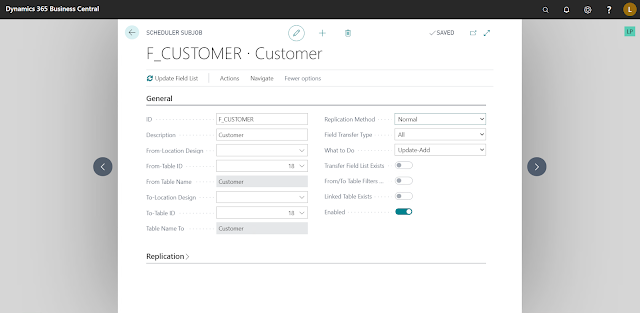
Introduction In the previous post , we saw how to configure the Schedule Job Header, this time we will configure the Sub-jobs. In Sub-jobs, we can define the Table structures to be followed, Tables the Data is supposed to be sent to, filters, replication counter fields and so on. Pre-requisites Microsoft Dynamics 365 Business Central LS Central References Repl. Counter Interval From Location Design Replication Method Configuration General ID :- Unique Identifier for the Sub-job. From-Location Design/To-Location Design :- These fields specify the structure of the tables. If the table structures are same in both sending and receiving locations, then you do not need to set this field. F rom-Table ID/To Table ID :- These fields specify the IDs of the tables. In most cases, these will be same only exception would be when you want to send data to custom Tables from BC/LS Tables. Replication Method :- It has two options- Normal :- In this method the entire table is transferred but as this is...

Configuring Data Replication Using Data Director and Scheduled Jobs in LS

Image
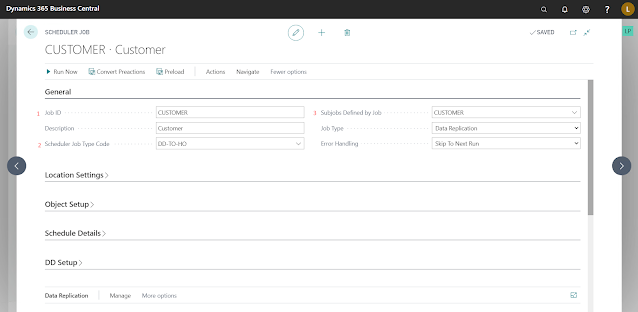
Introduction In this blog, we will be seeing Scheduled Job configuration for Data Replication using Data Director. Scheduled Jobs comprise of two parts: the Job Header and Sub-jobs. In the Job Header, we define different parameters for the Jobs like, Error Handling methodology, To and From Locations, Compression Types, Scheduling details and the sub-jobs. In the Sub Jobs, we define where to get the schemas of the table, the tables to replicate, methods of replication, filters on the data to be replicated, linked tables, etc. Pre-requisites Microsoft Dynamics 365 Business Central LS Central References LS Data Director User Guide Isolation levels in SQL Server Distribution Sub-Locations Distribution Restrictions Configuration General Job ID :- A unique Identifier for this Scheduled Job. Scheduler Job Type Code :- It is a kind of category for this Job, we can use this category as a filter when we configure NAS Services. Subjobs Defined By Job :- Specifies where system is supposed to fetc...